
Help / Playing the game
Playing the game
How the screen is laid out and how to move, fight, train, bank and stay alive.
The screen
The game view fills the window. Three areas sit on top of it:
| Area | Where | What it is |
|---|---|---|
| Minimap and orbs | Top right | A map of your surroundings. The orbs beside it show Hitpoints (red), Prayer (blue), run energy (yellow) and special attack (green). |
| Side panel | Bottom right | Your inventory, and behind its tabs your skills, worn equipment, prayers, spells, settings and more. |
| Chat box | Bottom left | Messages from the game and from players, and where you type. |
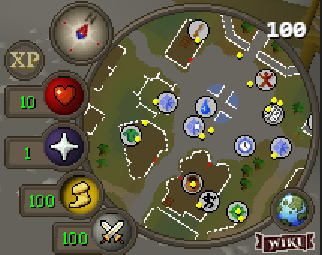
- Compass (top of the minimap): click it to face north.
- XP button: shows or hides the XP you gain as it happens.
- Run energy orb: click it to switch between walking and running.
- Globe (bottom right of the minimap): opens the world map.
Moving and the camera
- Walk: click the ground where you want to go, or click a spot on the minimap to go further.
- Run: click the yellow run orb. Running uses run energy, which refills while you walk or stand.
- Turn the camera: hold an arrow key, or hold the middle mouse button and drag.
- Zoom: scroll the mouse wheel.
- On a phone: tap to walk, drag to turn the camera and pinch to zoom.
Left click and right click
A left click does the most likely thing: walk here, talk to this person, attack this monster, pick this up. The top-left corner of the screen always tells you what a left click will do.
A right click opens a menu with everything you can do. On a phone, press and hold instead.
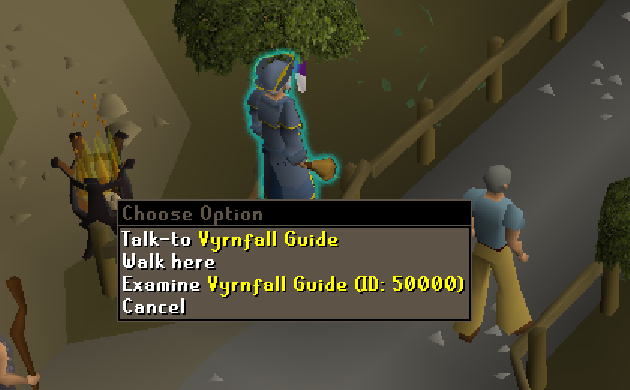
Examine is in almost every menu and tells you what the thing is.
The side panel tabs
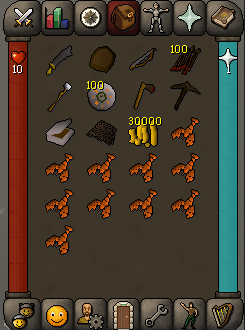
The side panel has a row of tabs above it and another below it. Click an icon to switch.
| Tab | What it holds |
|---|---|
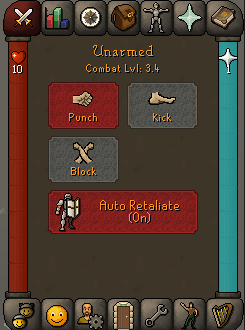
| Combat options (crossed swords) | Your attack style, which decides which skill gets the XP, and Auto Retaliate, which makes you fight back when attacked. |
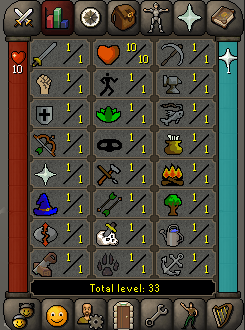
| Skills (bar chart) | Your level in each of the 24 skills. Hover over one to see the XP to the next level. |
| Quests (compass rose) | The quest list and the achievement diaries. |
| Inventory (backpack) | The 28 things you are carrying. |
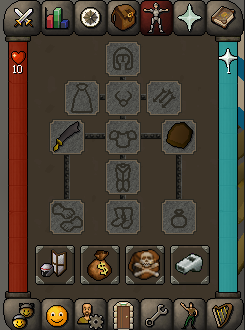
| Worn equipment (figure) | What you are wearing, and buttons for your equipment stats, price checker and items kept on death. |
| Prayer (star) | Prayers you can switch on. They drain your Prayer points while active. |
| Magic (book) | Your spells. Greyed-out spells need a higher Magic level or runes you do not have. |
| Chat channels, friends, account | Bottom row, left side. The account tab holds membership, your inbox and Change Name. |
| Logout (door) | Bottom row. How you leave the game safely. |
| Settings (spanner) | Bottom row. Controls, display, sound and All Settings. |
| Emotes and music | Bottom row, right side. |
Your items
You can carry 28 items. Some items stack into one slot (coins, arrows, runes); most do not.
| To do this | Do this |
|---|---|
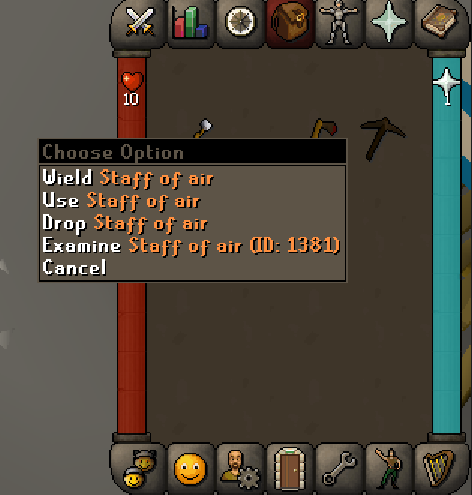
| Wear or wield something | Left-click it in your inventory. |
| Take something off | Open the worn equipment tab and click the item. |
| Eat food or drink a potion | Left-click it. |
| Use one item on another | Right-click the first, choose Use, then click the second. For example, use a tinderbox on logs. |
| Drop something | Right-click it and choose Drop. Dropped items can be picked up by other players after a short time. |
| Pick something up | Left-click it on the ground. |
| Move an item to another slot | Drag it. |
Fighting
- Wear a weapon.
- Open the combat options tab and choose a style. The style decides whether Attack, Strength or Defence gains the XP.
- Left-click a monster to attack it. If the left click says something else, right-click and choose Attack.
- Watch your red Hitpoints orb. Eat by clicking food in your inventory.
- When the monster dies, click what it dropped to pick it up.
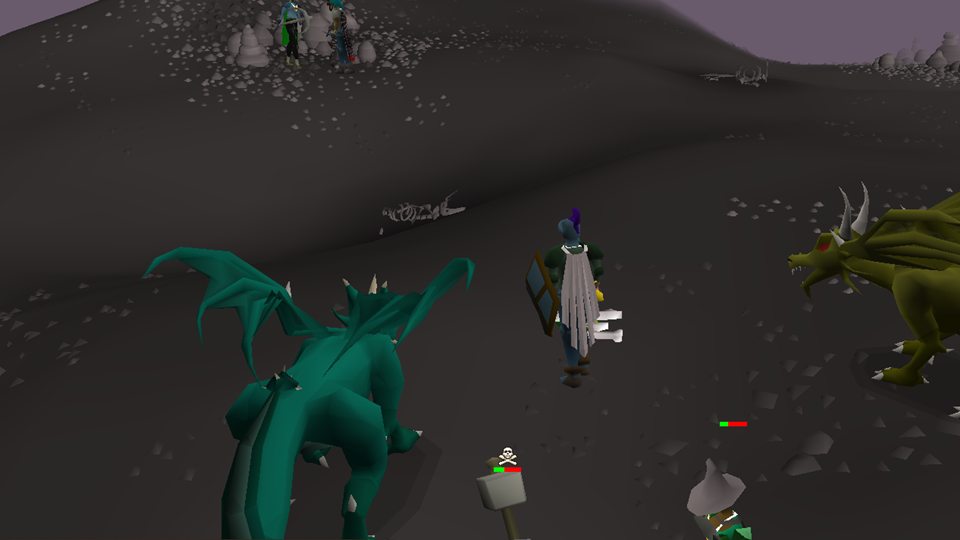
- Combat level is shown beside every monster's name. Green means much weaker than you, yellow about equal, red stronger.
- Ranged: wield a bow and the right arrows, then attack from a distance.
- Magic: open the Magic tab, click a spell, then click the monster. Each cast uses up runes.
- Running away: click the ground away from the fight, or type ::home to teleport back to Varrock. Teleports stop working deep in the Wilderness and while you are teleblocked, so leave early.
Training skills
There are 24 skills. Every action gives 25 times the usual XP, so levels come quickly. To train a gathering skill, carry the tool and click the resource:
| Skill | Tool | Click |
|---|---|---|
| Woodcutting | An axe | A tree |
| Mining | A pickaxe | A rock with ore in it |
| Fishing | A net, rod, cage or harpoon | A fishing spot in the water |
| Firemaking | A tinderbox | Use the tinderbox on logs |
| Cooking | Raw food | Use it on a fire or a range |
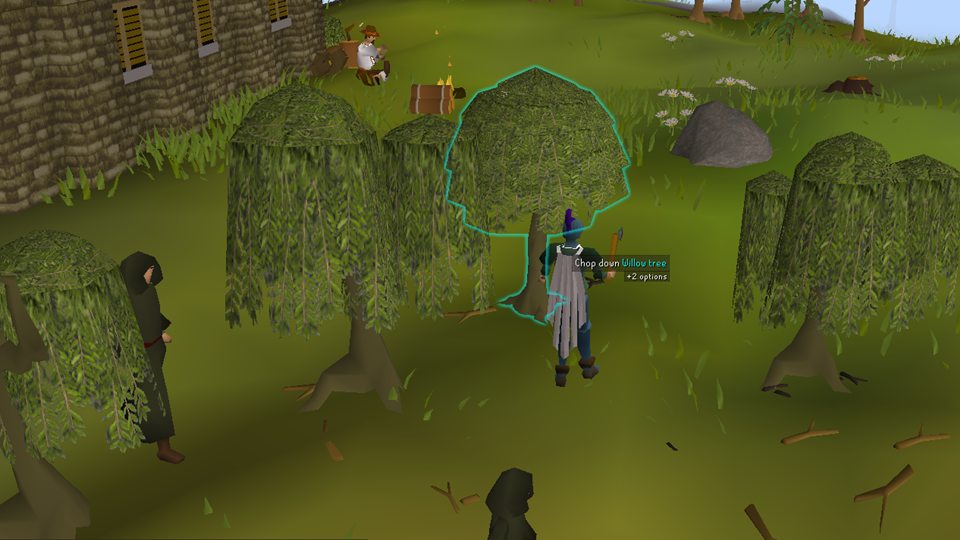
The Skilling tab of ::teleports lists 32 training spots. The Skilling Shop in ::shops sells tools. Each skill's guide, with what unlocks at each level, opens when you click that skill on the skills tab.
The bank
The bank keeps items safe. Banked items are never lost when you die.
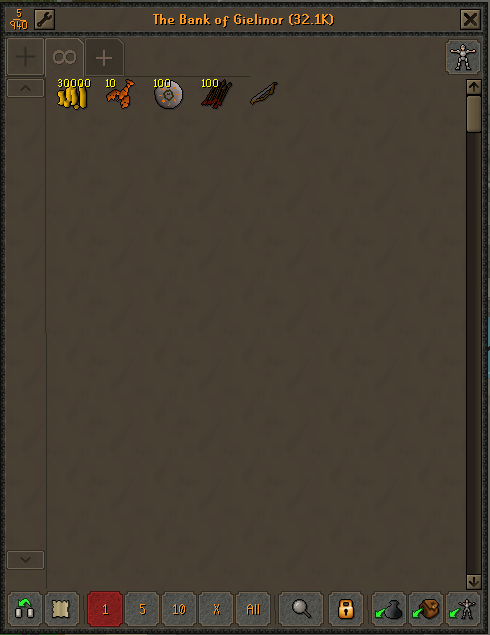
Opening it: click a bank booth or a banker in any town, or choose Open my bank from the Vyrnfall Guide. Members can type ::bank anywhere outside combat and the Wilderness.
| To do this | Do this |
|---|---|
| Deposit an item | Click it in your inventory while the bank is open. |
| Withdraw an item | Click it in the bank. |
| Move several at once | Pick 1, 5, 10, X or All at the bottom first, then click the item. |
| Deposit everything you carry | The button with a backpack at the bottom right. |
| Deposit everything you wear | The button with a figure at the bottom right. |
| Find an item | The magnifying glass. |
| Organise | Drag an item onto the + at the top to start a new tab. |
What happens when you die
When your Hitpoints reach zero you return home, to the road before the palace gate in Varrock, with full health.
- Fighting monsters outside the Wilderness: the items you lose are held in a gravestone where you died. Only you can see it, and it lasts 15 minutes. Go back and click it to take your items. After 15 minutes they move to Death's Office, where Death returns them.
- In the Wilderness: other players can attack you there, and what you lose can be taken by the player who killed you. Bring only what you can afford to lose.
- Before a risky trip: open the worn equipment tab and press the skull button to see Items Kept on Death, which lists exactly what you would keep and lose.
- Hardcore Ironman characters lose their hardcore status on a death outside a safe situation.
Anything in your bank is always safe.
Chat
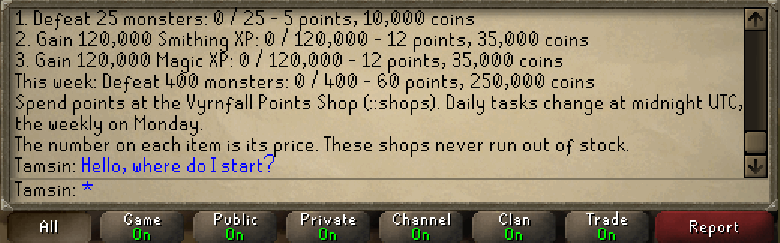
- Public chat: type and press Enter. Players near you see it.
- Tabs along the bottom filter what is shown: All, Game, Public, Private, Channel, Clan and Trade. Right-click a tab to turn that kind of message on, off or to friends only.
- Private messages: add a player on the friends tab, then click their name to message them wherever they are.
- Whole-world chat: members and staff can type ::yell and a message.
- Report: the button at the bottom right of the chat box. See Rules and reports.
Logging out
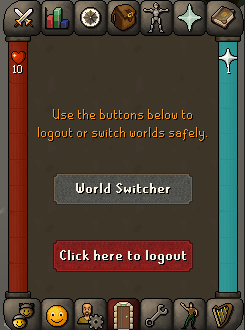
Click the door icon in the bottom row of the side panel, then Click here to logout. Your progress is saved when you log out. You cannot log out for a few seconds after being in a fight. Closing the browser tab also saves you, but your character stays in the world for a short while first, so log out properly anywhere dangerous.
Settings
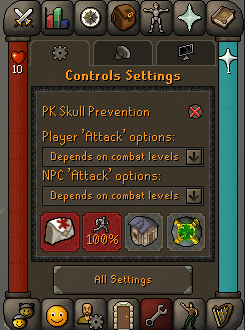
Click the spanner icon. The three small tabs at the top are controls, audio and display. All Settings opens the full searchable list. ::settings opens the same window and ::keybinds opens the keyboard shortcuts.
- Player 'Attack' options and NPC 'Attack' options decide whether Attack is the left-click action.
- PK Skull Prevention stops you attacking a player by accident in a way that would skull you.
Next guide: Travel and shops